Chromebook Guide
How to Write a Screenplay on Chromebook
You don't need Final Draft. You don't need expensive software. Here's how to write professional, industry-standard screenplays on your Chromebook for free.
 +
+
You don't need Final Draft. You don't need expensive software. Here's how to write professional, industry-standard screenplays on your Chromebook for free.
+
Chromebooks are everywhere. Schools, libraries, coffee shops. They're affordable, they boot in seconds, and they're perfect for writing. There's just one problem: most screenwriting software doesn't run on ChromeOS.
Final Draft? Windows and Mac only. Fade In? Same story. Movie Magic Screenwriter? Forget it. If you're a student, a teacher, or just a writer on a budget, you've probably felt stuck.
The good news? You can write professional screenplays on Chromebook, right now, for free. You just need Google Docs and the right add-on.
ChromeOS runs web apps, not traditional desktop software. That rules out most of the big names.
Industry standard, $250 price tag, and absolutely no Chromebook support. Windows and Mac only.
Great alternative to Final Draft, but still a desktop app. Won't run on ChromeOS.
Another desktop-only option. No web version, no Chromebook support.
WriterDuet and Arc Studio work in browsers and have free tiers, but with limitations. Full features require a subscription.
Google Docs is already on your Chromebook. It's free, it's reliable, and it's actually great for writing screenplays.
No subscription, no license fees, no hidden costs. Just open your browser and start writing.
Your scripts save automatically to Google Drive. No lost files, no manual backups, no "where did I put that?"
Write with your co-writer in the same document. See their changes instantly. Leave comments. No more emailing drafts.
Google Docs doesn't know what a screenplay looks like. You'd have to manually set margins for every element, scene headings, character names, dialogue, parentheticals, every single time. That's hours of tedious formatting instead of actual writing. Unless you automate it.
Here's what you'd have to do for every single element in your script:
Courier 12pt, ALL CAPS, left margin at 1.5 inches. Reset the ruler every time.
Centered, ALL CAPS, indented 2.2 inches from the left margin. Drag the ruler again.
Different margins than character names. More ruler dragging.
Yet another set of margins. You get the idea.
You'd spend more time fighting with formatting than actually writing your screenplay.
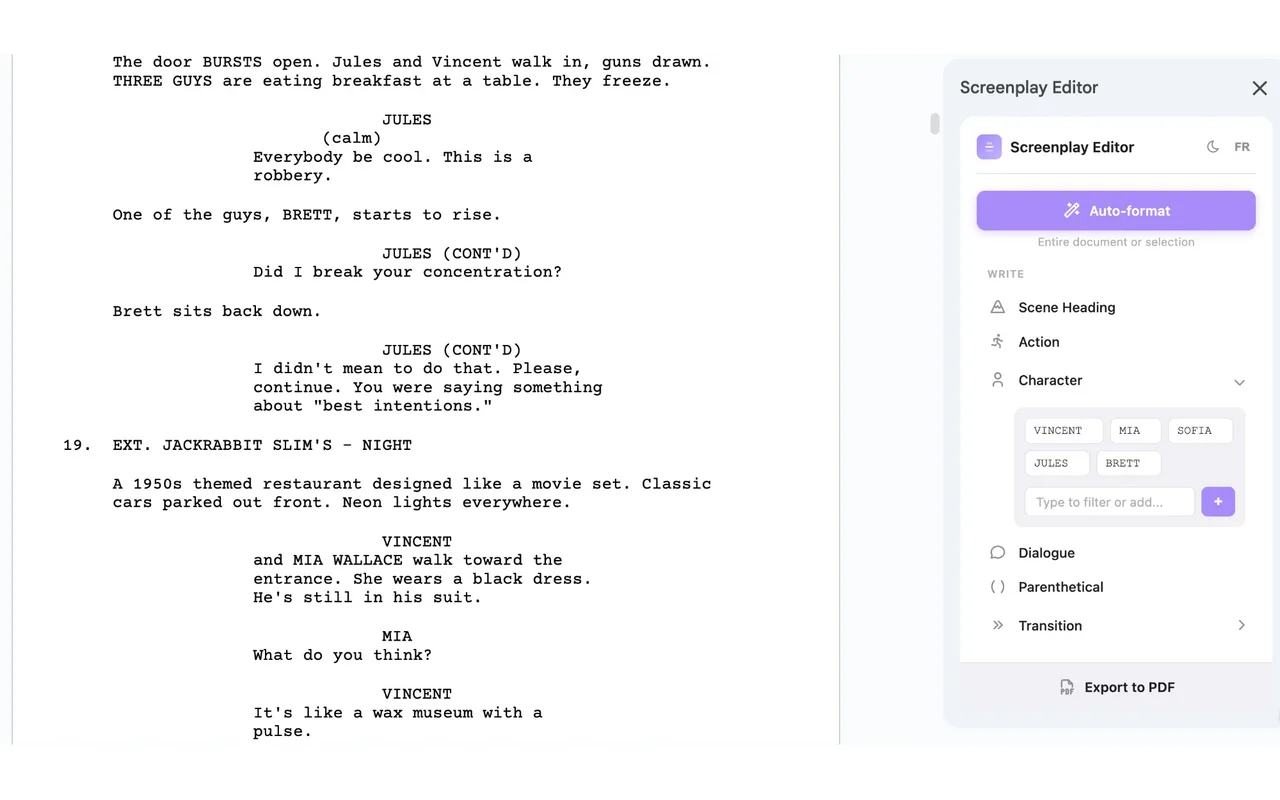
A free add-on that handles all the formatting automatically. Click a button, get perfect screenplay formatting. Works natively on Chromebook.
Scene headings, action, character, dialogue, parentheticals, transitions, all formatted instantly.
Correct margins, Courier font, proper spacing. Your PDF meets industry formatting standards, proper margins, Courier font, correct spacing.
It's a Google Docs add-on. If you can open Docs, you can use Screenplay Editor.
Export your finished screenplay as PDF or Final Draft format with one click.
Six steps. No technical knowledge required.
Go to docs.google.com on your Chromebook. Create a new document or open an existing one.
Click Extensions → Add-ons → Get add-ons in the menu bar.
Type "Screenplay Editor" in the search bar. It's the one with the purple icon.
Click the add-on, then click "Install". Grant the permissions it asks for (it needs to format your document).
Go to Extensions → Screenplay Editor → Open Sidebar. You'll see buttons for every screenplay element.
Type your text, click a button to format it. Or use keyboard shortcuts once you learn them. That's it.
Get the most out of your Chromebook writing setup.
Once you know the keyboard shortcuts, you'll never touch your mouse. Formatting becomes instant.
Google Docs works offline. Enable it in settings and keep writing even without internet.
Everything saves automatically to Google Drive. No more lost work because you forgot to hit save.
Share your script with co-writers. Everyone can edit simultaneously. No version control nightmares.
Screenplay Editor is free, works on any Chromebook, and installs in seconds. No credit card required. No account to create. Just install and write.